
Introduction
Automate QA Testing:
Automation is essential for modern software development. Manual testing is time-consuming and prone to human error, while automated testing ensures faster, reliable, and repeatable results. In this post, we’ll explore Cypress, Playwright, and Selenium, their setup, pros and cons, and provide a mini tutorial for each.

Cypress
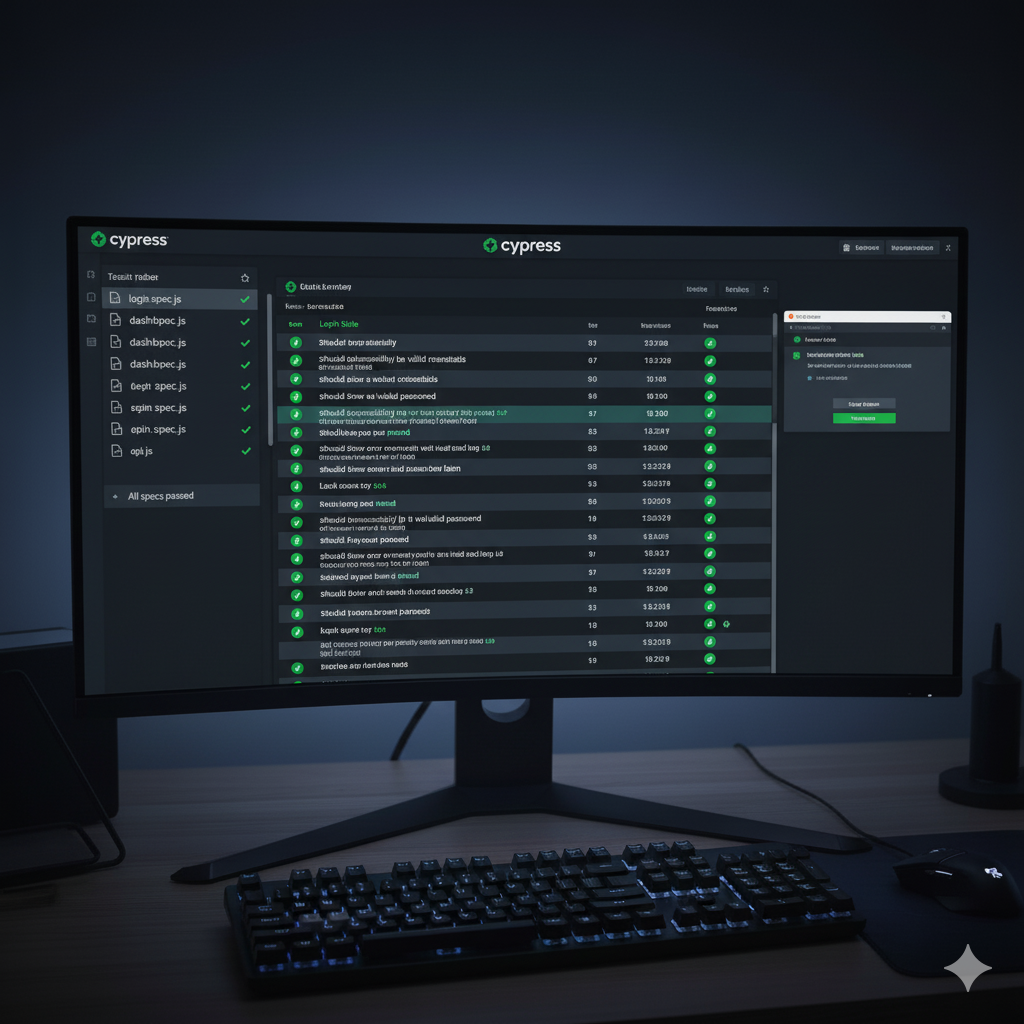
Cypress is a modern testing framework designed specifically for frontend testing of web applications.
Pros:
- Real-time reloads for fast feedback
- Easy to set up and use
- Supports Mocha and Chai for assertions
Cons:
- Limited cross-browser support (mainly Chromium-based)
- Cannot test multiple tabs easily
Use-case: End-to-end (E2E) testing of React, Vue, and Angular apps.

Playwright
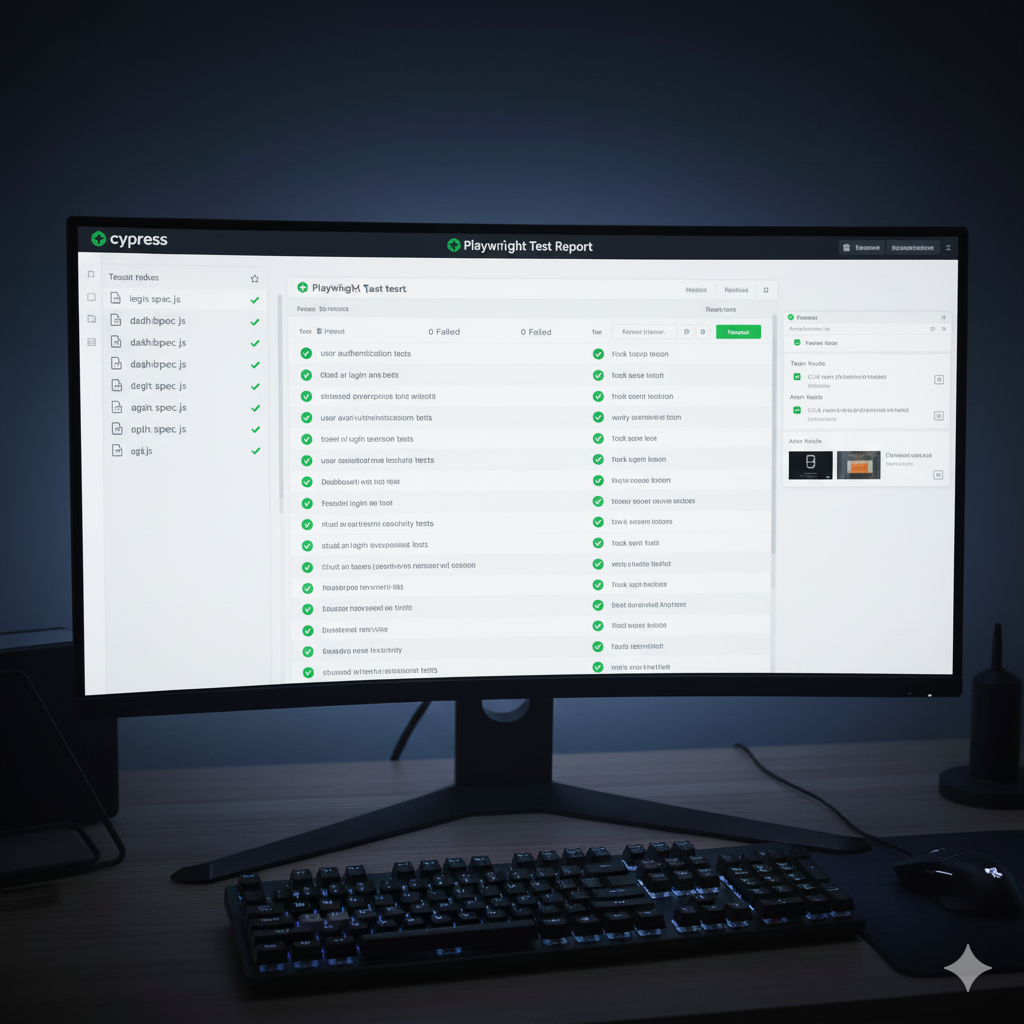
Playwright is a cross-browser automation tool that works for frontend and end-to-end testing.
Pros:
- Supports Chrome, Firefox, WebKit
- Can test multiple pages/tabs
- Powerful for complex workflows
Cons:
- Slightly steeper learning curve than Cypress
- Larger setup than Cypress

Selenium
Selenium is the classic automation framework for web applications, supporting multiple languages and browsers.
Pros:
- Language flexibility (Java, Python, C#, etc.)
- Supports almost all browsers
- Mature and widely adopted
Cons:
- Requires more setup than Cypress
- Slower test execution for complex scenarios

Comparison Table
| Tool | Browser Support | Ease of Use | Speed | Best For |
|---|---|---|---|---|
| Cypress | Chrome, Edge | Easy | Fast | E2E testing, frontend apps |
| Playwright | Chrome, Firefox, WebKit | Moderate | Fast | Cross-browser, complex flows |
| Selenium | All major browsers | Moderate | Moderate | Legacy apps, multi-language |
Conclusion
Automating QA testing saves time, improves reliability, and ensures higher quality software. For React or modern SPAs, Cypress is great for quick E2E testing. Playwright is ideal for cross-browser testing, while Selenium remains the go-to for multi-language and legacy projects.
CTA: Try these tools on your next project
Leave a Reply